GSLT: Difference between revisions
No edit summary |
No edit summary |
||
| Line 1: | Line 1: | ||
__NOTOC__ | |||
{{#seo: | {{#seo: | ||
|title=Gameserver Login Token (GSLT) - CKRAS WIKI | |title=Gameserver Login Token (GSLT) - CKRAS WIKI | ||
|title_mode=append | |title_mode=append | ||
|keywords=ckras, wiki, cs2, gameserver, help, guide, csgo, webinterface, token, gslt, | |keywords=ckras, wiki, cs2, gameserver, help, guide, csgo, webinterface, token, gslt, steam token, server login token | ||
|description=The | |description=The Gameserver Login Token (GSLT) is required for CS2 and CS:GO servers. This guide shows you how to create a GSLT and add it to your CKRAS server in the webpanel. | ||
|image=steam_gslt.png | |image=steam_gslt.png | ||
|image_alt=GSLT - Gameserver Login Token for Gameserver | |image_alt=GSLT - Gameserver Login Token for Gameserver | ||
}} | }} | ||
<div class="ck-page"> | |||
<div class="ck-hero--dark"> | |||
{| style="background:transparent; border:none; width:100%;" | |||
|- | |||
| style="vertical-align:top; width:130px; padding-right:20px;" | | |||
<div class="ck-hero-logo">[[File:steam_gslt.png|110px|alt=GSLT - Gameserver Login Token|link=GSLT]]</div> | |||
| style="vertical-align:top;" | | |||
<div class="ck-hero-content"> | |||
<h1 class="ck-hero-title">Gameserver Login Token (GSLT)</h1> | |||
<div class="ck-hero-sub">Create and connect your Steam Gameserver Login Token for CS2 or CS:GO in just a few steps.</div> | |||
<div class="ck-hero-meta"><b>Quick Start:</b> Create your token on Steam, add it in the CKRAS webpanel, then restart your server.</div> | |||
<div class="ck-hero-actions"> | |||
[https://steamcommunity.com/dev/managegameservers <span class="ck-btn ck-btn-primary">▶ Open Steam GSLT Page</span>] | |||
[https://iface.ckras.com <span class="ck-btn ck-btn-ghost">Open Webpanel</span>] | |||
[https://wiki.ckras.com/wiki/index.php?title=GSLT <span class="ck-btn ck-btn-ghost">Deutsch 🇩🇪</span>] | |||
</div> | |||
</div> | |||
|} | |||
</div> | |||
<div class="ck-lead"> | |||
'''Gameserver Login Tokens (GSLTs)''' are required for all '''[[CS2]]''' and '''[[CS:GO]]''' [[Gameserver|gameservers]]. | |||
This guide shows you how to create a GSLT on Steam and assign it to your CKRAS server in the [[Webinterface|webpanel]]. | |||
</div> | |||
<div class="ck-jump"> | |||
<b>Jump to:</b> [[GSLT#Requirements|Requirements]] • [[GSLT#Create_Your_GSLT|Create Token]] • [[GSLT#Add_the_Token_in_CKRAS|Add Token in CKRAS]] • [[GSLT#Check_the_Server_Log|Check Log]] • [[GSLT#Error_5005_.28CS2.29|Error 5005]] • [[GSLT#Server_Won.27t_Start|Server Won't Start]] | |||
</div> | |||
<div class="ck-callout ck-callout--amber"> | |||
<b>Important:</b> Dedicated servers using anonymous login will no longer appear properly in the server list and may not be connectable by CS2 / CS:GO clients. | |||
</div> | |||
== Requirements == | |||
Before creating a Gameserver Login Token, your Steam account must meet the following requirements: | |||
<div class="ck-feature-list"> | |||
<span class="ck-feature-pill">No community ban</span> | |||
<span class="ck-feature-pill">No account lock</span> | |||
<span class="ck-feature-pill">Not limited</span> | |||
<span class="ck-feature-pill">Registered phone number</span> | |||
<span class="ck-feature-pill">Owns the game</span> | |||
<span class="ck-feature-pill">Up to 1000 server accounts</span> | |||
</div> | |||
<div class="ck-callout"> | |||
You can manage dedicated server accounts linked to your Steam account here: | |||
<br><code>https://steamcommunity.com/dev/managegameservers</code> | |||
</div> | |||
== Create Your GSLT == | |||
<div class="ck-step-grid"> | |||
<div class="ck-step-card"> | |||
<div class="ck-step-top"> | |||
<div class="ck-step-num">1</div> | |||
<div class="ck-step-title">Log in to Steam</div> | |||
</div> | |||
<div class="ck-step-desc">Open the Steam Gameserver Login Token page and sign in with your Steam account.</div> | |||
</div> | |||
<div class="ck-step-card"> | |||
<div class="ck-step-top"> | |||
<div class="ck-step-num">2</div> | |||
<div class="ck-step-title">Select App ID</div> | |||
</div> | |||
<div class="ck-step-desc">For [[CS2]] / [[CS:GO]], use App ID <b>730</b>.</div> | |||
</div> | |||
<div class="ck-step-card"> | |||
<div class="ck-step-top"> | |||
<div class="ck-step-num">3</div> | |||
<div class="ck-step-title">Add a Memo</div> | |||
</div> | |||
<div class="ck-step-desc">Use a short label to identify the server later. This is very useful if you manage multiple servers.</div> | |||
</div> | |||
</div> | |||
[[File:account_gslt.jpg|link=]] | |||
<div class="ck-callout"> | |||
<b>Tip:</b> Use a clear memo such as the server name or location so you can identify tokens more easily later. | |||
</div> | |||
== | == Add the Token in CKRAS == | ||
After creating the token on Steam, copy it and add it to your CKRAS [[Webinterface|webpanel]]. | |||
[[ | |||
= | <div class="ck-step-grid"> | ||
<div class="ck-step-card"> | |||
<div class="ck-step-top"> | |||
<div class="ck-step-num">4</div> | |||
<div class="ck-step-title">Copy Token</div> | |||
</div> | |||
<div class="ck-step-desc">Copy the new GSLT from the Steam page.</div> | |||
</div> | |||
<div class="ck-step-card"> | |||
<div class="ck-step-top"> | |||
<div class="ck-step-num">5</div> | |||
<div class="ck-step-title">Paste in Webpanel</div> | |||
</div> | |||
<div class="ck-step-desc">Insert the token in the marked GSLT field in the CKRAS panel.</div> | |||
</div> | |||
== | <div class="ck-step-card"> | ||
<div class="ck-step-top"> | |||
<div class="ck-step-num">6</div> | |||
<div class="ck-step-title">Restart Server</div> | |||
</div> | |||
<div class="ck-step-desc">Restart your server to apply the changes.</div> | |||
</div> | |||
</div> | |||
[[File:Gslt-enter-here.png|alt=Enter your GSLT Key here|750x750px]] | |||
[[File: | |||
== Check the Server Log == | |||
After adding the token and restarting the server, connect to the server once and check the log in the webpanel. | |||
= | [[File:Console-log-button.png|alt=Console Log Button]] | ||
If everything was configured correctly, you should see entries similar to this: | |||
<br><br> | <code>Logging into Steam gameserver account with logon token 'BCD6ECC50E7----------------'</code><br> | ||
<code>Connection to Steam servers successful.</code><br> | |||
<code>Public IP is 83.----------.</code><br> | |||
<code>Assigned persistent gameserver Steam ID [G:1:1337].</code> | |||
< | <div class="ck-callout ck-callout--ok"> | ||
<b>Success:</b> If you see these messages, your GSLT has been added correctly and your server is connected to Steam. | |||
</div> | |||
== Error 5005 (CS2) == | |||
<code> | If your CS2 server shows error code <code>5005</code>, create a new GSLT and repeat this guide. | ||
<code> | <div class="ck-callout ck-callout--amber"> | ||
<b>Typical error:</b><br> | |||
<code>Cert request for invalid failed with reason code 5005. Failed to connect to Steam</code> | |||
</div> | |||
In many cases, this means the token is invalid, no longer accepted, or should be replaced with a new one. | |||
== Missing GSLT / Anonymous Login == | |||
If no valid token is configured, the server may fall back to anonymous login and become LAN-only. | |||
[[File:error_gslt.png|link=]] | |||
Example log output: | |||
<code>SteamGameServer_Init() OK, logging on to Steam</code><br> | |||
<code>****************************************************</code><br> | |||
<code>* No Steam account token was specified. *</code><br> | |||
<code>* Logging into anonymous game server account. *</code><br> | |||
<code>* Connections will be restricted to LAN only. *</code><br> | |||
<code>* To create a game server account go to *</code><br> | |||
<code>* http://steamcommunity.com/dev/managegameservers *</code><br> | |||
<code>****************************************************</code> | <code>****************************************************</code> | ||
== Server | <div class="ck-callout"> | ||
<b>Meaning:</b> Your server does not currently have a valid Steam Gameserver Login Token configured. | |||
</div> | |||
== Server Won't Start == | |||
If your server does not start after adding a GSLT, check the error log in the CKRAS webpanel. | |||
Possible reasons: | |||
<div class="ck-feature-list"> | |||
<span class="ck-feature-pill">Token used on multiple servers</span> | |||
<span class="ck-feature-pill">Token banned</span> | |||
<span class="ck-feature-pill">Invalid token</span> | |||
<span class="ck-feature-pill">Wrong or incomplete setup</span> | |||
</div> | |||
<div class="ck-callout ck-callout--amber"> | |||
<b>Important:</b> Do not use the same GSLT on multiple servers. | |||
</div> | |||
Valve may ban GSLTs if servers violate the official server guidelines. | |||
If a token is banned, the Steam account and related phone number may also lose the ability to generate new GSLTs. | |||
== Workshop == | |||
Please note: if you want to install custom maps such as <code>fy_poolday</code>, you may also need a [[Workshop|Workshop]] setup in addition to the [[GSLT]]. | |||
<div class="ck-callout"> | |||
For workshop maps and related setup steps, see the full [[Workshop|Workshop Guide]]. | |||
</div> | |||
< | |||
== Support == | |||
If you have questions or problems, contact support: | |||
[https://www.ckras.com/contact www.ckras.com/contact] | |||
== Gameserver == | == Gameserver == | ||
[[File:ORDER CS2 Gameserver.png|alt=ORDER CS2 Gameserver|521x521px|link=https://www.ckras.com/en/]] | [[File:ORDER CS2 Gameserver.png|alt=ORDER CS2 Gameserver|521x521px|link=https://www.ckras.com/en/]] | ||
[[Category:CS2]] | |||
[[Category:CSGO]] | |||
</div> | |||
Revision as of 21:04, 23 March 2026
 |
Gameserver Login Token (GSLT)Create and connect your Steam Gameserver Login Token for CS2 or CS:GO in just a few steps.
|
Gameserver Login Tokens (GSLTs) are required for all CS2 and CS:GO gameservers. This guide shows you how to create a GSLT on Steam and assign it to your CKRAS server in the webpanel.
Jump to: Requirements • Create Token • Add Token in CKRAS • Check Log • Error 5005 • Server Won't Start
Important: Dedicated servers using anonymous login will no longer appear properly in the server list and may not be connectable by CS2 / CS:GO clients.
Requirements
Before creating a Gameserver Login Token, your Steam account must meet the following requirements:
No community ban No account lock Not limited Registered phone number Owns the game Up to 1000 server accounts
You can manage dedicated server accounts linked to your Steam account here:
https://steamcommunity.com/dev/managegameservers
Create Your GSLT

Tip: Use a clear memo such as the server name or location so you can identify tokens more easily later.
Add the Token in CKRAS
After creating the token on Steam, copy it and add it to your CKRAS webpanel.

Check the Server Log
After adding the token and restarting the server, connect to the server once and check the log in the webpanel.

If everything was configured correctly, you should see entries similar to this:
Logging into Steam gameserver account with logon token 'BCD6ECC50E7----------------'
Connection to Steam servers successful.
Public IP is 83.----------.
Assigned persistent gameserver Steam ID [G:1:1337].
Success: If you see these messages, your GSLT has been added correctly and your server is connected to Steam.
Error 5005 (CS2)
If your CS2 server shows error code 5005, create a new GSLT and repeat this guide.
Typical error:
Cert request for invalid failed with reason code 5005. Failed to connect to Steam
In many cases, this means the token is invalid, no longer accepted, or should be replaced with a new one.
Missing GSLT / Anonymous Login
If no valid token is configured, the server may fall back to anonymous login and become LAN-only.
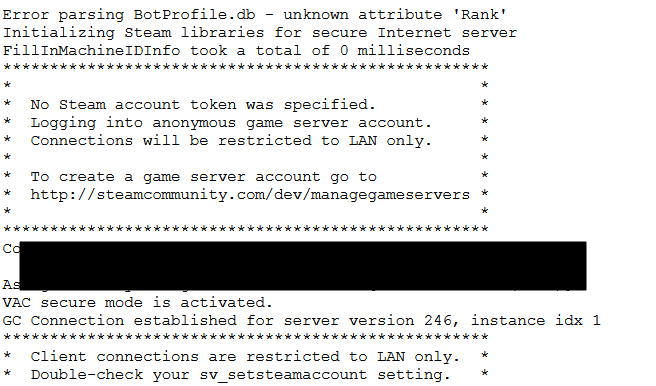
Example log output:
SteamGameServer_Init() OK, logging on to Steam
****************************************************
* No Steam account token was specified. *
* Logging into anonymous game server account. *
* Connections will be restricted to LAN only. *
* To create a game server account go to *
* http://steamcommunity.com/dev/managegameservers *
****************************************************
Meaning: Your server does not currently have a valid Steam Gameserver Login Token configured.
Server Won't Start
If your server does not start after adding a GSLT, check the error log in the CKRAS webpanel.
Possible reasons:
Token used on multiple servers Token banned Invalid token Wrong or incomplete setup
Important: Do not use the same GSLT on multiple servers.
Valve may ban GSLTs if servers violate the official server guidelines. If a token is banned, the Steam account and related phone number may also lose the ability to generate new GSLTs.
Workshop
Please note: if you want to install custom maps such as fy_poolday, you may also need a Workshop setup in addition to the GSLT.
For workshop maps and related setup steps, see the full Workshop Guide.
Support
If you have questions or problems, contact support:
Gameserver